powershelldba.de
REF: PSDB-AOS-2026 SCOPE: SQL Server 2022 / 2025 STATUS: v1.0.0
Module

Availability groups configured in ~20 minutes, not an afternoon.

AlwaysOnSetup is a PowerShell WinForms tool that fully automates configuring a SQL Server AlwaysOn availability group on an existing Windows Server Failover Cluster — up to 3 nodes. It reads the cluster automatically, falls back to SQL authentication when Kerberos SPNs are missing, cleans up failed attempts on its own, and logs everything.

Why this exists

What manual AG setup actually costs.

Setting up an availability group by hand is slow, inconsistent between DBAs, and the Kerberos/SPN trap alone can stall a rollout for a day waiting on the AD team.

Manual setupAlwaysOnSetup
2–4 hours, depending on the operator's experience~20 minutes
Everyone keeps their own Word/Excel checklistOne GUI, pre-filled from the cluster
No log unless someone writes one by hand3 files generated automatically
SPNs missing → call the AD team → waitReady-to-send setspn file generated for them
Failed attempt → clean up the WSFC by handAutomatic WSFC cleanup on retry
Requirements

What it needs.

Windows Server2022 or later, on every cluster node
SQL Server2022 or later (Enterprise or Standard)
ClusterAn existing Windows Server Failover Cluster (WSFC) with 2 or 3 nodes
Backup shareA shared UNC path, writable from every node
NetworkPort 5022 open between all nodes (HADR endpoint)
RightsLocal administrator on the node it runs from, sysadmin on every node, domain read access (for SPN checks)
ModulesFailoverClusters and dbatools ≥ 2.0 — both installed automatically if missing

dbatools usage is deliberately minimal — only Invoke-DbaQuery and Connect-DbaInstance. Everything else runs over direct T-SQL (sqlcmd), WMI, or FailoverClusters cmdlets, to avoid version dependencies and internal side effects.

Workflow

Nine steps, always in this order.

Every run executes these steps in sequence. Skipped steps are recorded in the log.

  1. SQL service accountOptional: change the account and password via WMI on every node and restart the service.
  2. Enable HADRsp_configure 'hadr enabled', 1 on every node; service restart with an active readiness check.
  3. Create the endpointDatabase mirroring endpoint (port 5022) created and started via T-SQL.
  4. Grant CONNECTWindows login created, GRANT CONNECT ON ENDPOINT applied on every node.
  5. Test databaseDatabase created, recovery model set to FULL, initial full backup taken.
  6. Availability groupAG created via plain T-SQL (sqlcmd), replicas joined, automatic seeding enabled.
  7. ListenerAG listener with IP address and port, via ALTER AVAILABILITY GROUP.
  8. StatusAG synchronization status and replica roles read out via DMVs.
  9. SPN checkMissing MSSQLSvc SPNs detected; the needed setspn commands exported as a text file for the AD team.
Operation

What you actually do.

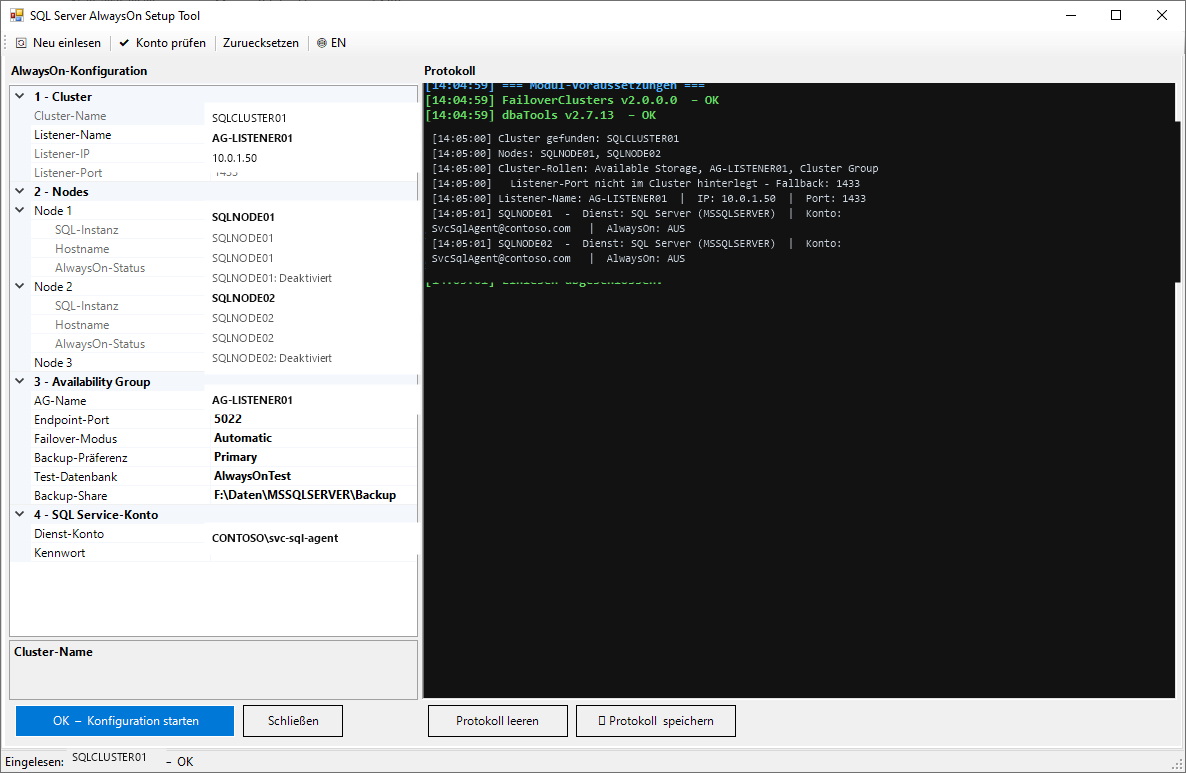
Start: open PowerShell as Administrator on a cluster node and run AlwaysOnSetup.ps1. It checks modules and reads cluster information automatically — everything it finds appears in a PropertyGrid for review.

PropertyGrid fields

AG nameName of the availability group (= WSFC role name)
Listener nameDNS name of the AG listener
Listener IPListener IP address (taken from the cluster)
Listener portListener TCP port (default: 1433)
Endpoint portHADR endpoint port (default: 5022)
Failover modeAutomatic = synchronous with automatic failover; Manual = asynchronous
Backup preferencePrimary / Secondary / PreferSecondary / None (default: Primary)
Test databaseName of the database to add to the AG
Backup shareUNC path for the initial full backup
Service accountSQL service account (auto-detected, optionally changeable)

After clicking start

  1. Review the PropertyGridCheck every field and adjust if needed.
  2. Choose the primary nodeSelect it from the dropdown list.
  3. Start configurationClick the button — everything from here runs automatically.
  4. Watch the live logColor-coded progress in real time (see below).
  5. If SPNs are missingClick Continue after the manual SQL login step (see SPNs below).
  6. Forward the SPN fileHand the generated request file to the AD team at the end.
Kerberos & SPNs

The one thing worth setting up in advance.

Service Principal Names let SQL Server use Kerberos authentication. If they're missing, Windows authentication fails with Cannot generate SSPI context.

SituationWhat happens
SPNs already setFully automatic run, Kerberos on every node, no manual step
SPNs missingTool pauses → shows a ready-to-run T-SQL block → you run it manually → click Continue → the rest of the run continues over SQL authentication

SPNs needed (short name and FQDN, per node, plus the listener)

# Per SQL node — short name and FQDN
setspn -S MSSQLSvc/SQLNODE01:1433              DOMAIN\SQLServiceAccount
setspn -S MSSQLSvc/SQLNODE01.domain.com:1433   DOMAIN\SQLServiceAccount

setspn -S MSSQLSvc/SQLNODE02:1433              DOMAIN\SQLServiceAccount
setspn -S MSSQLSvc/SQLNODE02.domain.com:1433   DOMAIN\SQLServiceAccount

# AG listener
setspn -S MSSQLSvc/AG-LISTENER:1433            DOMAIN\SQLServiceAccount
setspn -S MSSQLSvc/AG-LISTENER.domain.com:1433 DOMAIN\SQLServiceAccount

# Verify after setting:
setspn -L DOMAIN\SQLServiceAccount

Step 9 generates the exact commands for your environment and saves them to C:\System\WinSrvLog\MSSQL\AlwaysOn_SPN_ADTeam_<date>.txt — ready to forward as-is.

When SPNs are missing

  1. Auto-detectionThe tool detects which nodes aren't reachable over Kerberos.
  2. T-SQL block shownA ready-to-copy block for creating a temporary login is displayed in the log.
  3. Run it locallyRun the T-SQL via SSMS, locally on each affected node (over RDP).
  4. ContinueClick Continue — the tool verifies the SQL-auth connection on every node.
  5. Automatic cleanupThe temporary login is removed and the password policy re-enabled at the end.
Output & logging

Everything lands in one folder.

All files are written automatically to C:\System\WinSrvLog\MSSQL\.

FileContentsWhen
AlwaysOn_ClusterSettings_<date>.txtCluster configuration, AG parameters, node status — a backup taken before any changeBefore step 1
AlwaysOn_Setup_<date>.logFull text log of every step, timestampedAfter completion
AlwaysOn_Setup_<date>.rtfColor RTF log (saved via a button in the tool)On demand
AlwaysOn_SPN_ADTeam_<date>.txtReady-to-send setspn commands with explanation and a verification commandStep 9

Live log color coding

Blue, boldSection heading
Green, boldSuccess — action completed
YellowWarning — step skipped, or a note
Red, boldError — action failed
Light greyInformation — general status
Troubleshooting

What each error actually means.

ErrorCauseFix
Cannot generate SSPI contextSPNs for the node are missing in Active DirectoryShort term: run the manual SQL-login step in the tool. Long term: have the AD team set the SPNs.
WSFC group ... already existsLeftover from a failed setup attemptCleaned up automatically: Remove-ClusterGroup plus the HadrAgNameToldMap registry key on every node.
Login failed for user AGSetup_...SQL Server isn't in mixed mode, or password policy is blocking itCheck mixed mode in SSMS: Server Properties → Security → SQL Server and Windows Authentication mode.
Backup directory not reachableInvalid UNC path, or no write permissionFix the path in the PropertyGrid; it must be writable from every node.
Endpoint port 5022 already in useExisting endpoint, or a firewall blocking the portRun SELECT * FROM sys.endpoints WHERE type=4; adjust the port in the PropertyGrid.
AG still not visible after 60sSQL Server hasn't fully initialized after enabling HADRThe tool actively waits via SELECT 1 (up to 2 minutes). On timeout, check the service manually.
Technical details

Why it's built this way.

Connection strategy

Reading state: Windows auth via WMI for service information, T-SQL for HADR status. Configuring: Windows auth (Kerberos) tested on every node first; on an SSPI error, a temporary SQL login with a cryptographically random 28-character password (RNGCryptoServiceProvider). Cleanup: the temporary login is deleted on every node automatically, and the password policy re-enabled.

Why sqlcmd for AG creation

CREATE AVAILABILITY GROUP and every AG-join command runs through sqlcmd directly rather than Invoke-DbaQuery. Reason: after the service restart in step 2, dbatools can hold a cached connection where sys.availability_groups still appears empty. sqlcmd opens a fresh TCP connection on every call.

WSFC cleanup on retry

Before creating the AG, the tool checks for a leftover WSFC group from a previous attempt and cleans it up automatically: Stop-ClusterGroup + Remove-ClusterGroup -RemoveResources -Force, then clears the HKLM:\Cluster\HadrAgNameToldMap registry key on every node via Invoke-Command.

Security

The temporary SQL login uses a cryptographically random password built only from T-SQL-safe special characters. The password is never written to a log file — it's visible only in the running session's RTF window. The Enforce Password Policy setting is disabled only for the duration of creating the login, and both the login and the policy are guaranteed to be reset at the end.

Next steps

After the AG is up — sqmSQLTool tasks.

AlwaysOnSetup hands off a working availability group. These sqmSQLTool commands are the natural next steps to harden and monitor it.